
Register & Login
This page explains how to create an account and sign in to TG-Staff.
App URL: https://app.tg-staff.com/
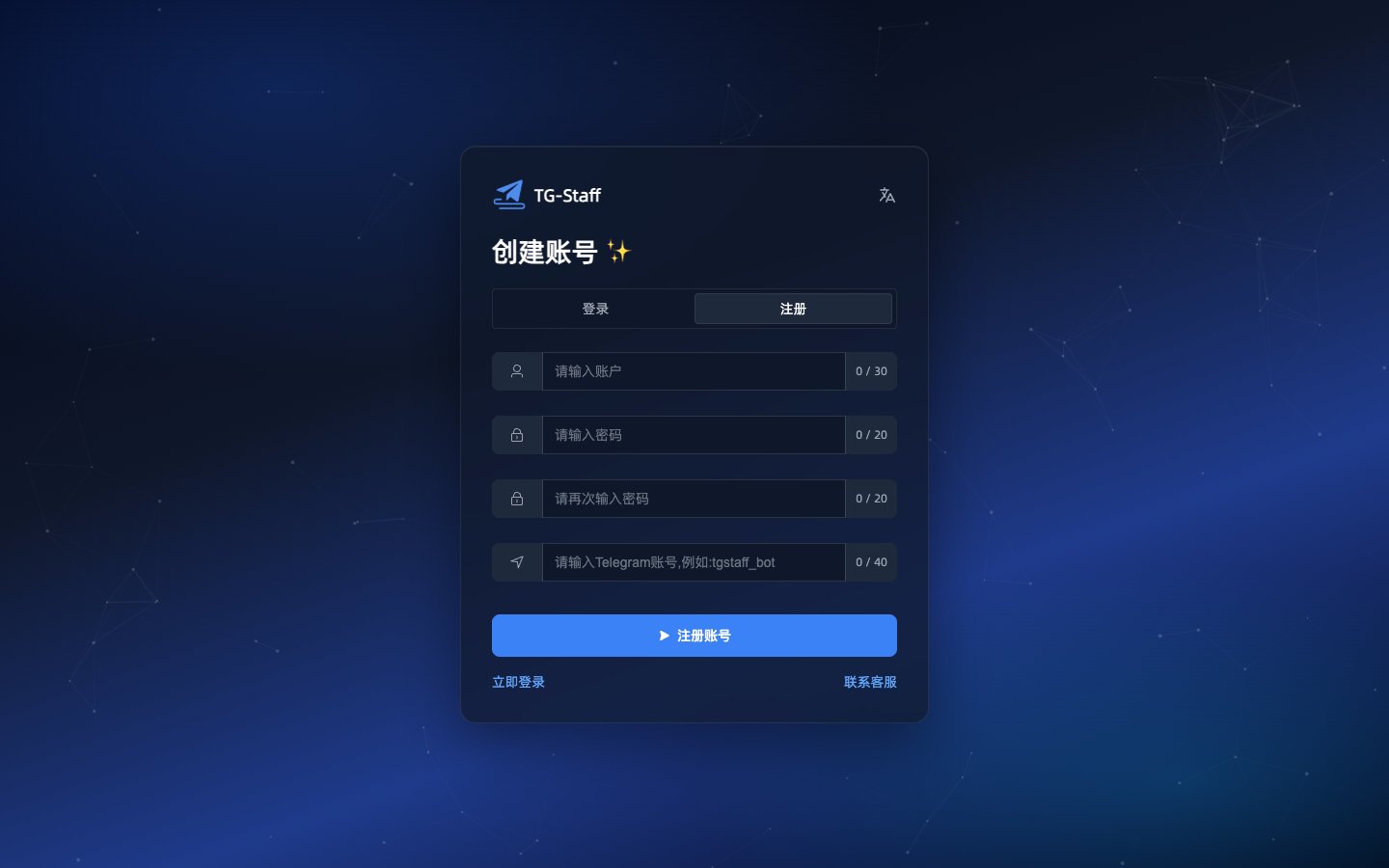
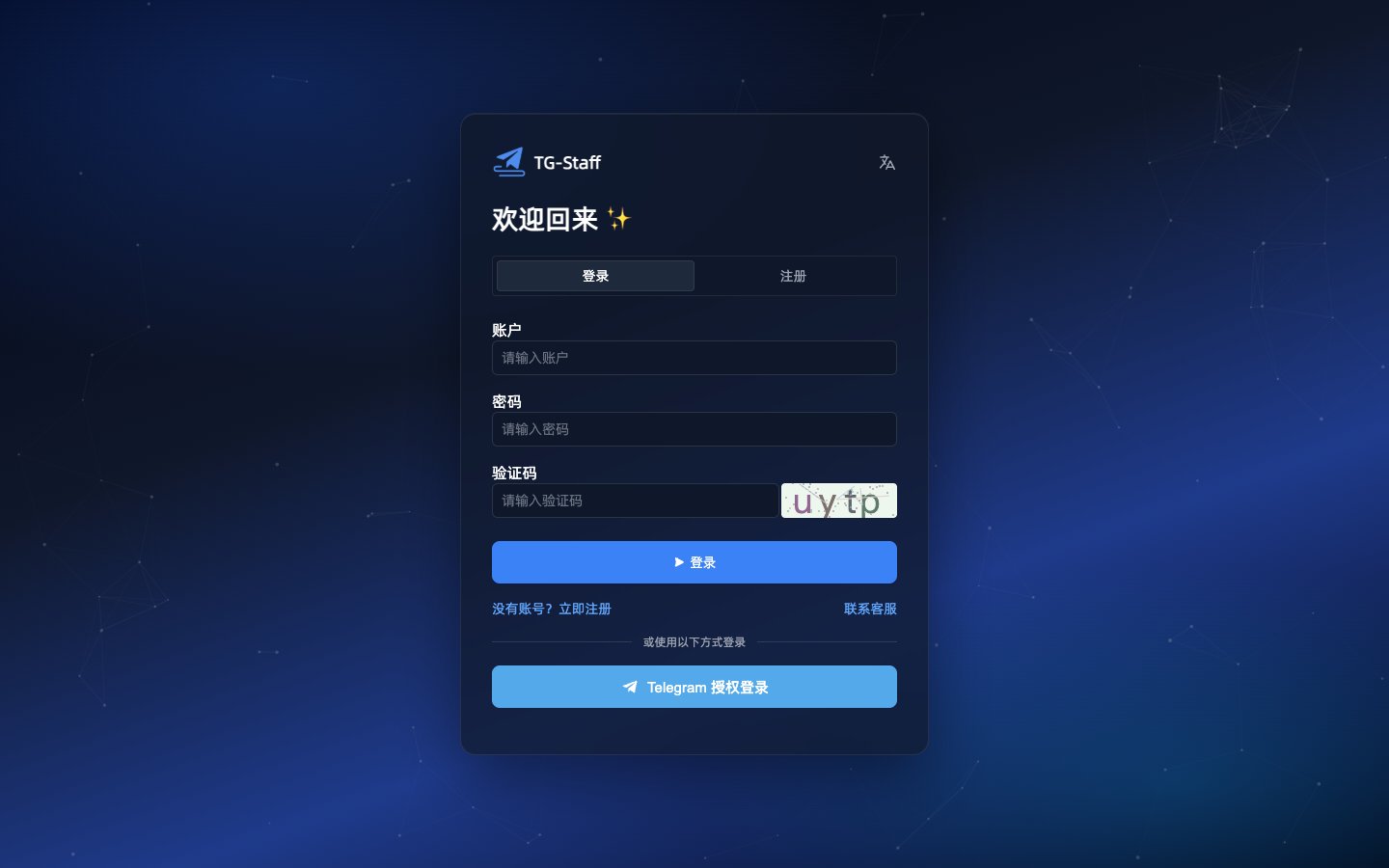
You will see a dark login page with an animated particle background and a centered card. Use the Login / Register tabs at the top of the card to switch modes.
Register
- Switch to the Register tab on the login card.
- Fill in:
- Username — 5–30 characters: letters, numbers,
-, or_ - Password / Confirm password — 6–20 characters, no spaces
- Telegram contact — your Telegram username for password recovery (e.g.
tgstaff_robot, without@)
- Username — 5–30 characters: letters, numbers,
- After a successful registration, switch back to Login to sign in.
Tip
Your Telegram contact is the only way to recover your password. Use an account you actively use.
Login
Username & password
- On the Login tab, enter your username and password.
- In production, complete the captcha on the right (click the image to refresh). Local dev may skip captcha.
- Click Login. If two-factor authentication is enabled, enter the 6-digit code from your authenticator app.
Telegram sign-in
Below the login form, you can use the Log in with Telegram button:
- Authorize via Telegram when prompted.
- If the account is linked to Telegram and has 2FA enabled, you may still need to enter a 6-digit code after authorization.
Note
Telegram sign-in works for accounts already linked to Telegram. New users should register first.
After sign-in
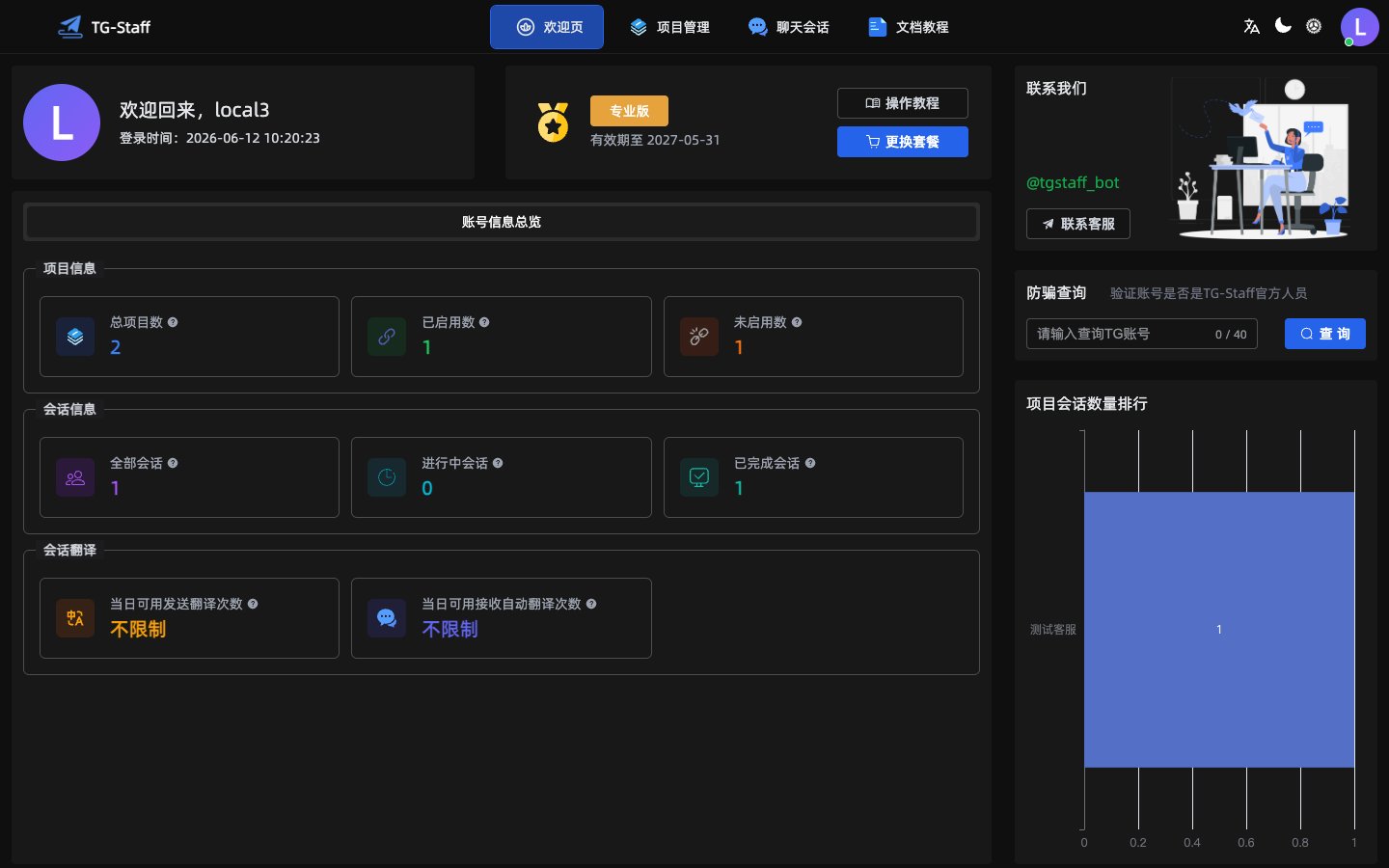
You land on the welcome page with plan info, project overview, and shortcuts.
First-time checklist
- Confirm your plan and expiry on the welcome page.
- Go to Projects and create your first project.
- Follow the Quick Start guide to activate your bot and publish commands.